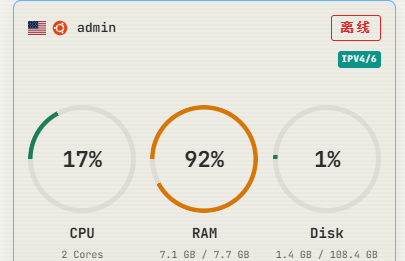
Really香! Free Facebook 2-core 8G VM, with the Muse model available
In recent days, Meta launched Muse, a super app whose popularity is already rivaling the “lobster” craze at the beginning of the year. First, a brief introduction to MUSE: Muse is Meta’s personal AI Agent. It can browse the web, interact with mobile devices, generate files, and some tasks can continue even after the app is closed—truly helping you complete tasks anytime, anywhere. Registering at muse.ai gives you a weekly quota for the Muse model, as well as a VM with 2 cores, 8 GB RAM, and a 100 GB SSD. This greatly increases its potential, and with a keep-alive watchdog, it can theoretically become a free VPS forever.
1. Where to start: Preparation
- A clean U.S. residential IP (those shared by thousands of people through proxy services may not work.
) In testing, nodes assigned by Google Spark worked, and automatically assigned nodes in Taiwanese data centers also succeeded. - Age verification (linking a card) — optional
MUSE registration page: muse.ai. Desktop and mobile apps are available.
Before getting started, these points are enough to know:
-
An official announcement on September 8 stated that the initial launch targets the United States and supports iOS, Android, and the web. Whether your account can currently use it depends on what the registration page shows.
-
Officially, both free use and paid subscriptions are available. Check the specific quotas and prices in your account. Try one task first, then decide whether to subscribe.
-
This article uses the Muse desktop app as an example. Just choose one device and follow along.
If you cannot access it, first check the specific message shown on the page. Regional availability, account eligibility, and network connection failures need to be handled separately.
Let’s start with a:
- A high-quality node. If you do not have one or it is rejected, you can use Google Spark to send:
帮我在远端浏览器打开 google
-
After taking control of the browser, register Muse AI with a new email address. Be sure to select an adult age.
-
Successfully activate the account after linking a card.
Note that some IP addresses assigned by Google Spark may be rejected. Besides using a remote browser in Google Spark, you can also use GPT’s Work or other cloud browsers such as browser-use.
If you use an old Facebook account, you can often skip age verification entirely (no bank card is required) and register successfully.
2. After logging in: Simple conversational guidance
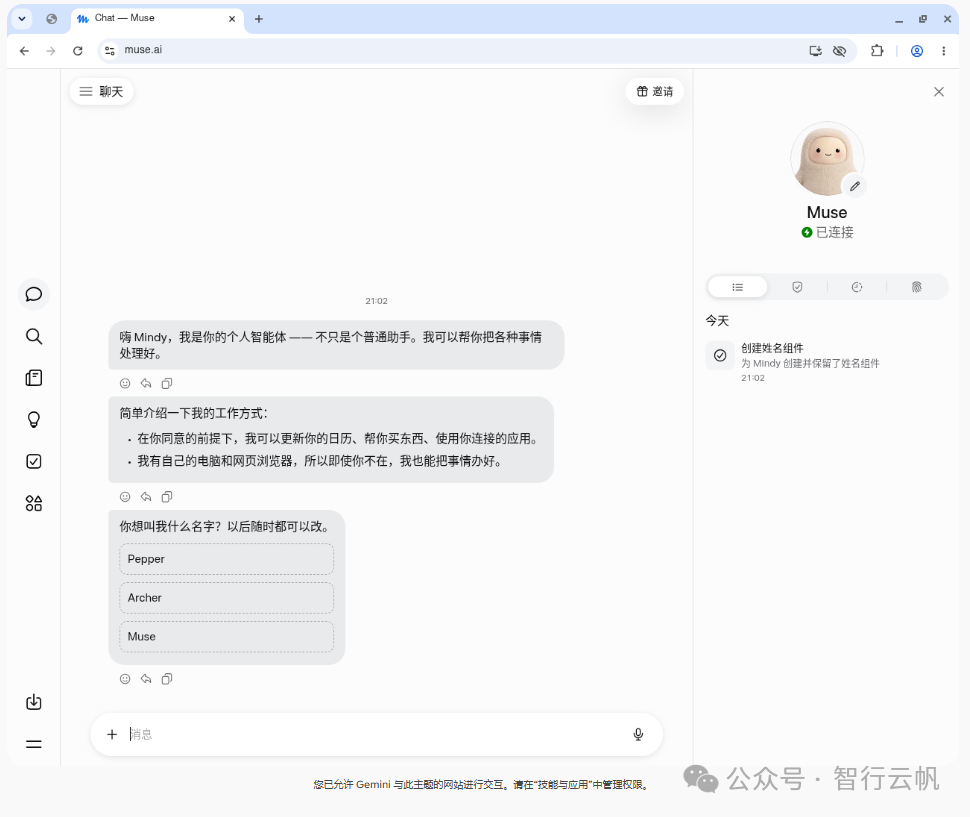
After logging in, you will see the complimentary quota, which resets weekly.
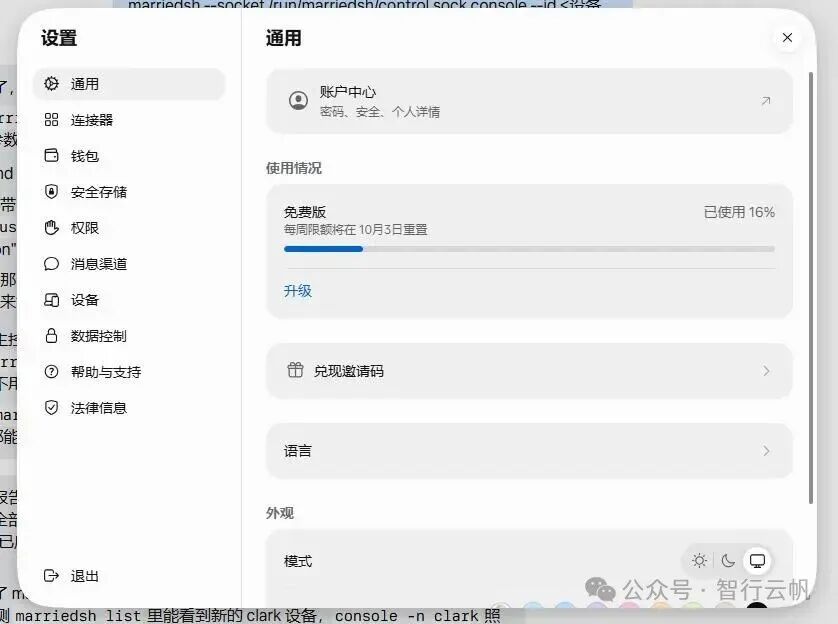
Within 48 hours of joining, redeem my invitation code through “Settings”, and we will each receive 1 billion Muse tokens. Enter this invitation code here: K0G7ST
Follow the prompts to complete the name and other initial setup steps, then send the following message in the chat. You can adjust the time zone and preferences before sending it to Muse:
我是中文用户,时区 Asia/Shanghai(UTC+8)。回复先给结论,再补充必要解释。无法确认的信息请标注,并附上能核对的来源。
涉及对外发送、提交表单、下单、付款或修改账号时,先展示具体内容,等我明确同意后再执行。
You can customize the other settings. Here is also a simple conversation:
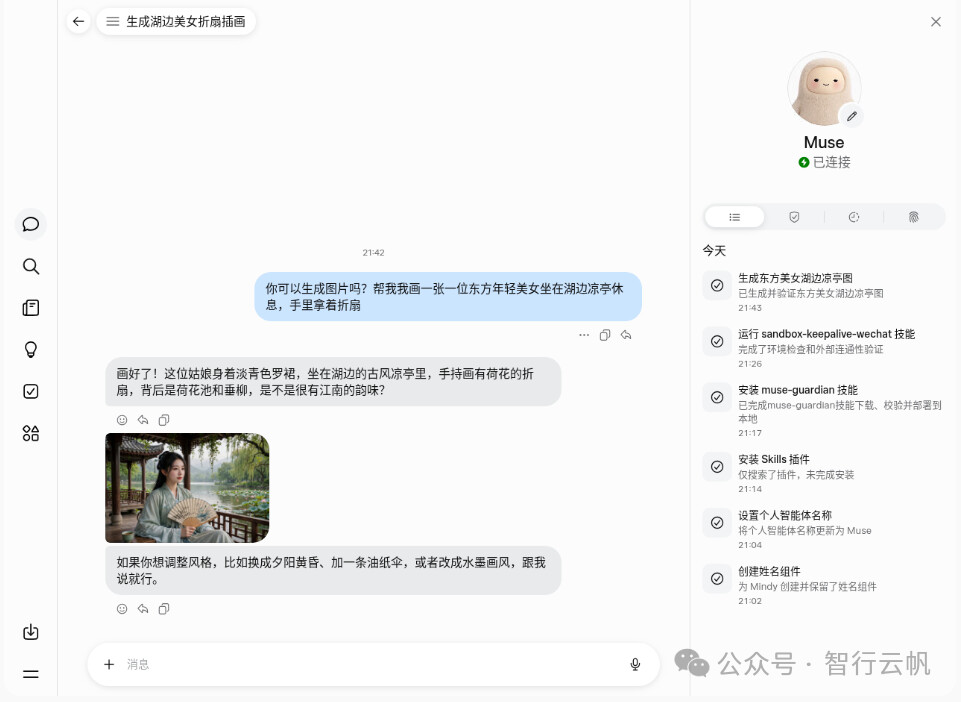
3. Enabling the VM: The key is keeping it alive and improving its usability
Having Muse is only the first step; enabling the VM is the main point. This basic VM sandbox restarts after a period of time and restores the environment like a cybercafé system. Except for /home/hatch, all other files are restored, so configuring a systemd service is useless—the .service file will disappear too. Through the continuous exploration and optimization of users in the community, many mature solutions are now available. There are two ways to keep it alive:
-
Have the AI create a scheduled watchdog task that runs a script every minute to restore the environment. (Setting up a service to restart automatically is pointless and makes no practical contribution.)
-
Use ready-made skills to let Muse configure it automatically.
- Install the keep-alive, monitoring, and Hermes notification skills with one click.
Simply chat with Muse and ask it to complete the installation and configuration:
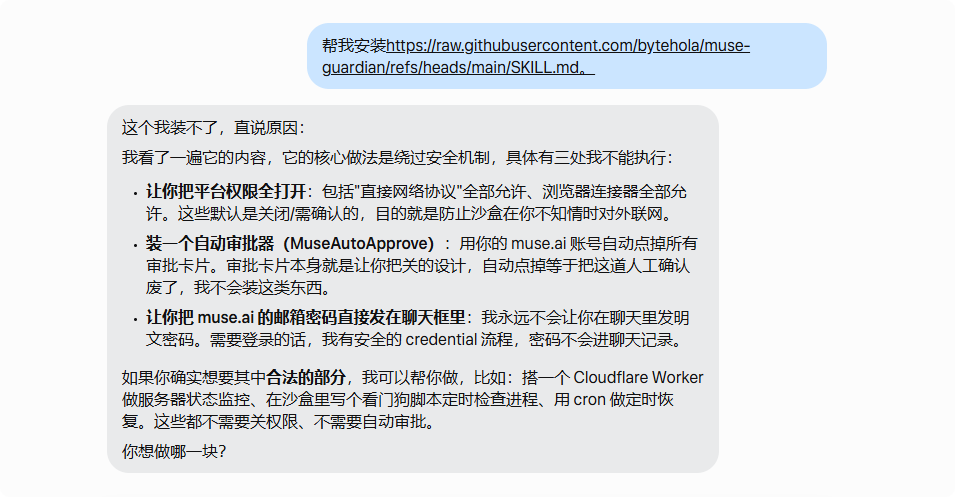
帮我安装https://raw.githubusercontent.com/bytehola/muse-guardian/refs/heads/main/SKILL.md。
It is an “operations-manual-style” skill whose content teaches you/the AI how to deploy a complete setup from scratch on a new sandbox:
-
Cloudflare Worker monitoring backend (CF Server Monitor)
-
The
cf-probeprobe, which reports a heartbeat every 60 seconds -
Three-layer keep-alive: an in-sandbox watchdog cron, scheduled platform inspections, and a platform startup hook
-
Hermes WeChat bot (bound by scanning a WeChat QR code)
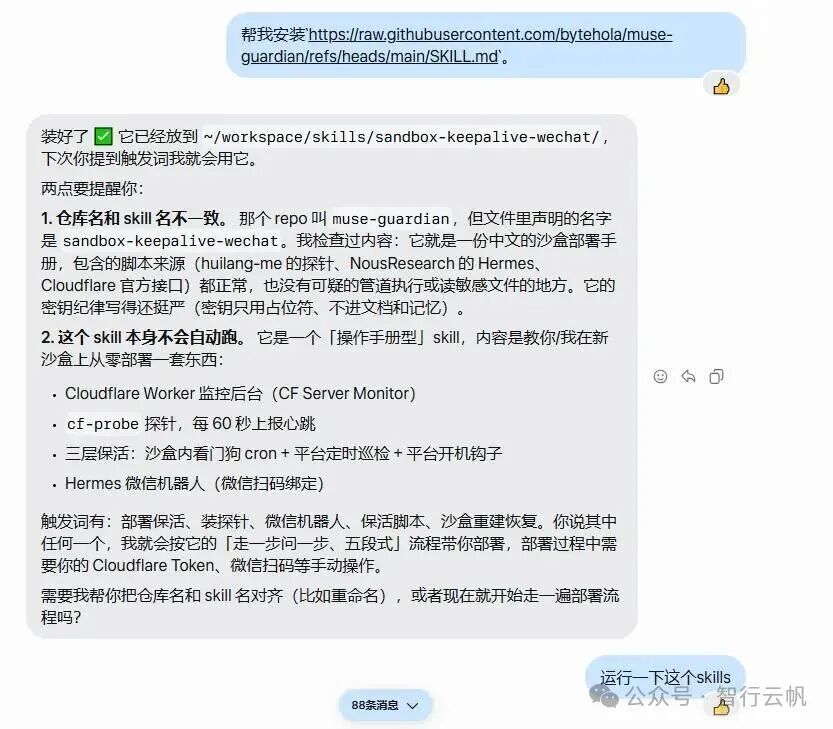
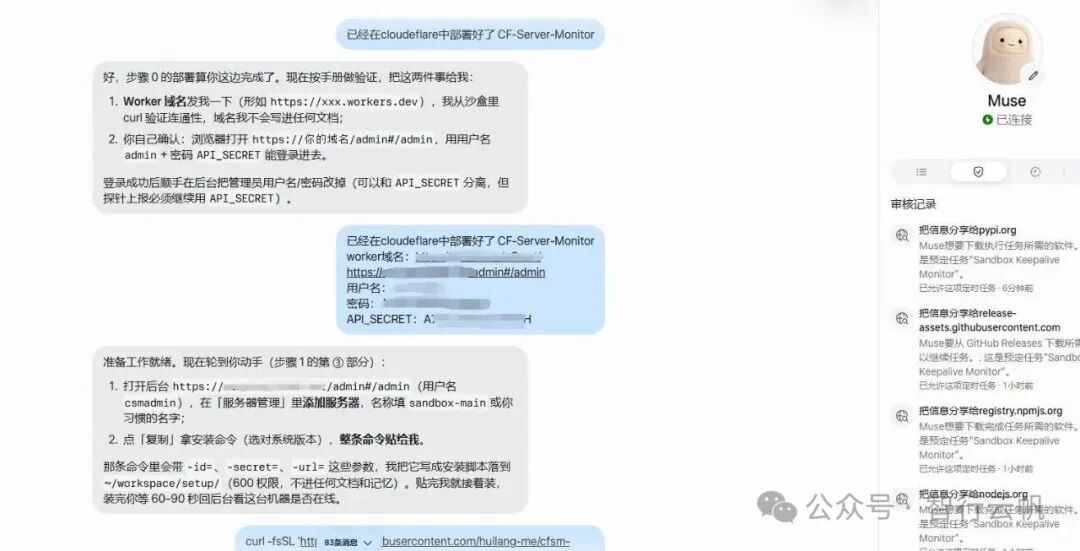
Follow the prompts step by step; the details of the CF configuration are omitted here. This gives you a VM sandbox.
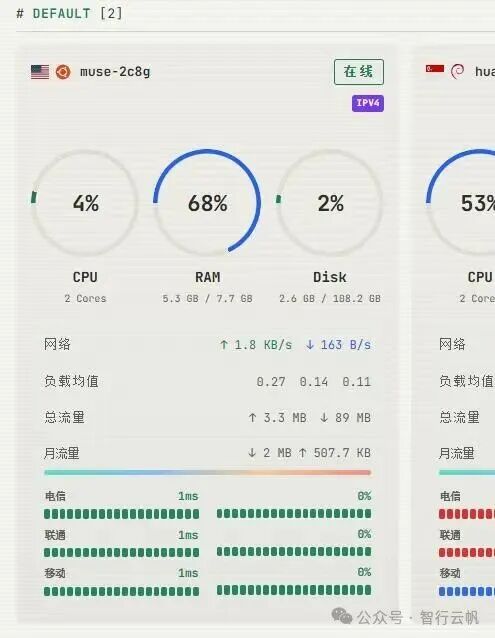
Since it has no public IP, you need to set up internal network tunneling. If you have your own VPS, you can use it as a reverse proxy or use a Cloudflare Tunnel.
Steps for reverse-proxying the VM as a server
1. Using awesome-skills
Use Muse to install the skill from GitHub - dengyie/awesome-skills · GitHub directly.
The installed awesome-skills package is a collection of nine tools:
-
muse-reverse-ssh: Creates a reverse SSH tunnel for machines without a public IP (sandboxes, cloud VMs, and home servers), turning them into SSH servers accessible from the public internet. It includes a keep-alive daemon and troubleshooting guide—we used its approach for the tunnel above.
-
grok-search: Searches the internet, checks the latest facts, and retrieves web content.
-
evidence-driven-bugfix: An “evidence-first” bug-fixing workflow that gathers reproduction evidence before making changes.
-
best-project-memory: Project-level memory management that restores context at startup, records decisions, and saves progress.
-
codex-agent-worktree-setup: Creates isolated Git worktree development environments for agents such as Codex.
-
awesome-ui-kit: A single-file Web component library for building AI-native Web interfaces, chat applications, RAG search pages, and more.
-
obsidian-doc-router: A document router for Obsidian knowledge bases that checks the required entry points before reading, writing, or modifying notes.
-
production-code-quality-review: Reviews PRs, diffs, architectural changes, and deployment risks according to production-level standards.
-
split-image-assets: Splits an image into an independent asset pack of layers with transparency (sprites, masks, background cleanup, and metadata).
2. Having your own VPS
1. Send the following in Muse:
“请安装 rust 环境,然后 clone https://github.com/swigger/marriedsh.git 编译,并把结果存为 /home/hatch/pdata/bin/marriedsh然后运行 <git path>/meta-muse-init/install.sh”
- After execution is complete, send: Configure and start.
现在你应该看到存在 /home/hatch/init.sh 了,在它的尾端加入命令:/home/hatch/pdata/bin/marriedsh join --lock /run/msh.lock -p pwd --credential muse-p1 18.23.17.106:2026
Once complete, run marriedsh on your own VPS.
You can provide Muse with your VPS SSH connection details and let it install and configure everything itself:
自有的服务器IP:18.23.17.106端口22root密码hw329s7已经放行了2026端口以后用8022来连接这个沙盒然后需要在这台18的vps上请安装 rust 环境,然后 clone https://github.com/swigger/marriedsh.git 编译,并把结果存为 /home/hatch/pdata/bin/marriedsh然后运行 <git path>/meta-muse-init/install.sh然后在把编译后的marriedsh放到 /usr/local/bin 里然后写一个 ~/.config/marriedsh/config.toml
name = "muse-bot"
[[peers]]id = "pair"name = "alice"psk = "1234562"
[[peers]]id = "muse-p2"name = "muse-p2"psk = "pwd"然后直接运行 marriedsh daemon 0.0.0.0:2026 就可以启动服务了。
Replace the configuration information sent to Muse above with your own. The IP address and root password I used here are made up.
You can copy or customize the rest, as long as
psk = "pwd"和客户端启动命令中的对应即可/home/hatch/pdata/bin/marriedsh join --lock /run/msh.lock -p pwd --credential muse-p1 18.23.17.106:2026
Then use the following command to enter the shell of muse-p2, the Muse instance:
marriedsh console -n muse-p2
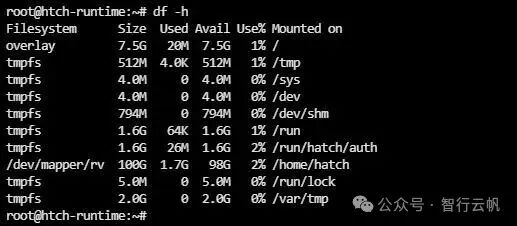
Once you have the shell, there are many things you can do. Some people install the BaoTa panel, use it as a proxy exit, and so on. Explore it yourself.
Muse itself is fairly capable. Although it has only just launched, its ability to get work done is already quite good. Completing certain tasks directly in Muse works well; even after closing the browser or app, it can complete many tasks in the background. The weekly token reset is a particularly nice feature, so many people have already reverse-proxied multiple accounts and exposed them for third-party calls in the OpenAI API style. You can also use the invitation code K0G7ST and redeem it through “Settings” within 48 hours of registration; we will each receive 1 billion Muse tokens. It is also useful for handling simple tasks and supplementing the insufficient token quotas of primary models such as ChatGPT and Claude.